
Check the samples below to learn how to convert tables in PDF to CSV files for MS Excel using Bytescout PDF Extractor SDK.
Select your programming language:
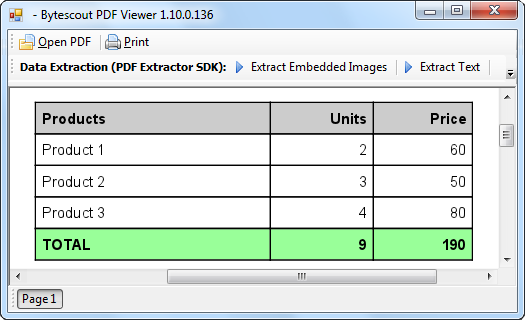
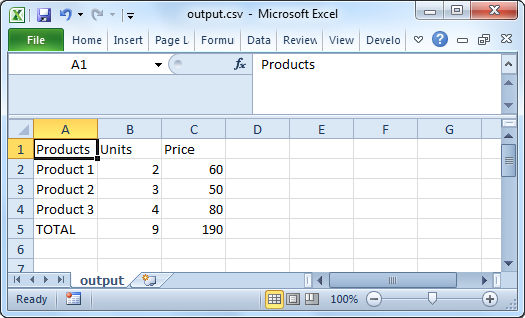
In these screenshots, you can see the input PDF table and output CSV file with data extracted from the table.
Input PDF table to be converted to CSV file:
Output CSV file with data extracted from PDF table:
Here’s the source code to convert a PDF table to CSV format:
using System;
using System.Collections.Generic;
using System.Text;
using Bytescout.PDFExtractor;
using System.Diagnostics;

namespace ConsoleApplication1
{
    class Program
    {
        static void Main(string[] args)
        {
            // Create Bytescout.PDFExtractor.CSVExtractor instance
            CSVExtractor extractor = new CSVExtractor();
            extractor.RegistrationName = "demo";
            extractor.RegistrationKey = "demo";

            // Load sample PDF document
            extractor.LoadDocumentFromFile("sample3.pdf");

            //extractor.CSVSeparatorSymbol = ","; // you can change CSV separator symbol (if needed) from "," symbol to another if needed for non-US locales

            extractor.SaveCSVToFile("output.csv");

            Console.WriteLine();
            Console.WriteLine("Data has been extracted to 'output.csv' file.");
            Console.WriteLine();
            Console.WriteLine("Press any key to continue and open CSV in default CSV viewer (or Excel)...");
            Console.ReadKey();

            Process.Start("output.csv");
        }
    }
}
Check out the source code to convert a PDF table to CSV format:
program Project1;

{$APPTYPE CONSOLE}

{
 IMPORTANT:
  To work with Bytescout PDF Extractor SDK you need to import this as a component into Delphi

 To import Bytescout PDF Extractor SDK into Delphi 2006 or higher do the following:
 1) Click Component | Import Component.
 2) Select Type Library and click Next
 3) Find and select Bytescout PDF Extractor SDK in the list of available type libraries and
 4) Click Next
 5) Click Next on the next screen
 6) Select "Add Bytescout_PDFExtractor_TLB.pas" into Project" and click Finish

 This will add Bytescout_PDFExtractor_TLB.pas into your project and now you can use TextExtractor, InfoExtractor, CSVExtractor, XMLExtractor, ImageExtractor object interfaces (_TextExtractor, _InfoExtractor, _CSVExtractor, _XMLExtractor, _ImageExtractor classes)

}

uses
  SysUtils,
  ActiveX,
  Bytescout_PDFExtractor_TLB in 'c:program filesborlandbds4.0ImportsBytescout_PDFExtractor_TLB.pas';

var
 extractor: _CSVExtractor;
begin
 CoInitialize(nil);

// Create Bytescout.PDFExtractor.CSVExtractor object using CoCSVExtractor class
 extractor := CoCSVExtractor.Create();


 extractor.RegistrationName := 'demo';
 extractor.RegistrationKey := 'demo';

 // Load sample PDF document
 extractor.LoadDocumentFromFile ('../../sample3.pdf');

// extractor.CSVSeparatorSymbol = ','; // you can change CSV separator symbol (if needed) from "," symbol to another if needed for non-US locales

 extractor.SaveCSVToFile ('output.csv');

 // destroy the extractor object
 extractor := nil;

end.
Take a look at the source code for PDF table conversion into CSV format:
Imports System
Imports System.Collections.Generic
Imports System.Text
Imports Bytescout.PDFExtractor
Imports System.Diagnostics

Namespace ConsoleApplication1
    Class Program
        Shared Sub Main(ByVal args As String())
            ' Create Bytescout.PDFExtractor.CSVExtractor instance
            Dim extractor As New CSVExtractor()
            extractor.RegistrationName = "demo"
            extractor.RegistrationKey = "demo"

            ' Load sample PDF document
            extractor.LoadDocumentFromFile("sample3.pdf")

            'extractor.CSVSeparatorSymbol = "," // you can change CSV separator symbol (if needed) from "," symbol to another if needed for non-US locales

            extractor.SaveCSVToFile("output.csv")

            Console.WriteLine()
            Console.WriteLine("Data has been extracted to 'output.csv' file.")
            Console.WriteLine()
            Console.WriteLine("Press any key to continue and open CSV in default CSV viewer (or Excel)...")
            Console.ReadKey()

            Process.Start("output.csv")
        End Sub
    End Class
End Namespace
Here’s VBScript source code to convert a PDF table to CSV format:
' Create Bytescout.PDFExtractor.CSVExtractor object
Set extractor = CreateObject("Bytescout.PDFExtractor.CSVExtractor")

extractor.RegistrationName = "demo"
extractor.RegistrationKey = "demo"

' Load sample PDF document
extractor.LoadDocumentFromFile "../../sample3.pdf"

'extractor.CSVSeparatorSymbol = "," ' you can change CSV separator symbol (if needed) from "," symbol to another if needed for non-US locales

extractor.SaveCSVToFile "output.csv"

MsgBox "Data has been extracted to 'output.csv' file."
Today you will learn how to convert PDF to Excel CSV and C# with PDF Extractor SDK. We will use a sample PDF in this demo. Let’s start by opening the Visual Studio app. You can also use your favorite editor and C#. Then enter the sample code inside Visual Studio. You will see the sample code link in the description box below.
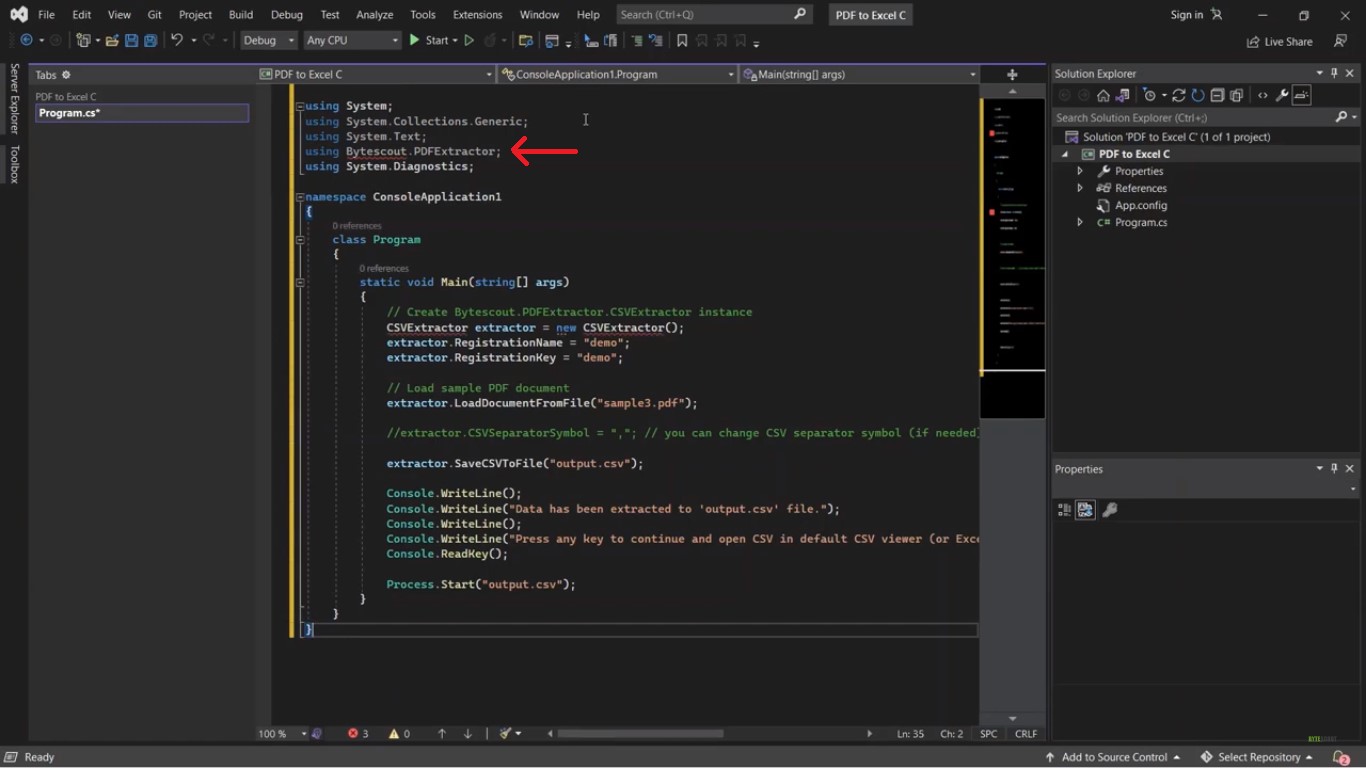
Next, let’s add the references of PDF Extractor SDK. To do that, click on references in Solution Explorer and Add Reference. Then look for ByteScout PDF Extractor SDK. After adding the references, add your registration name and key to their corresponding properties accordingly. You can get the license details in your Byte Scout dashboard.
Now let’s load the sample pdf. Add the sample file in the solution explorer. Then set the output directory to copy always and type your desired CSV file name. After setting up the code, you may now run the program. Once the program runs successfully, the output will be saved to a CSV file.
Now press any key to view the output. Here’s the converted CSV file output. For more video tutorials, you may visit our YouTube channel and don’t forget to hit the subscribe button and click the notification bell icon.