This guide for Web developers will help to install BarCode SDK control for SQL Server Reporting Service to use in ASP.NET reports.
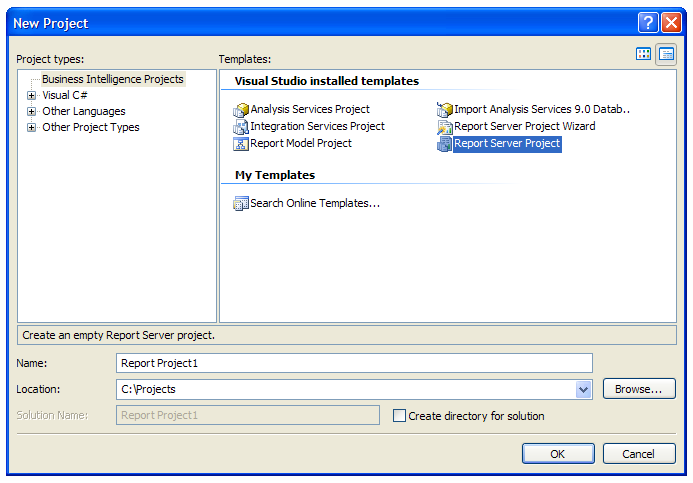
Open Microsoft Visual Studio and create new “Report Server Project”
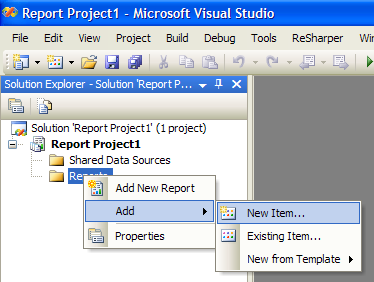
Right-click “Reports” node in the Solution Explorer and select “Add / New Item…” from the context menu.
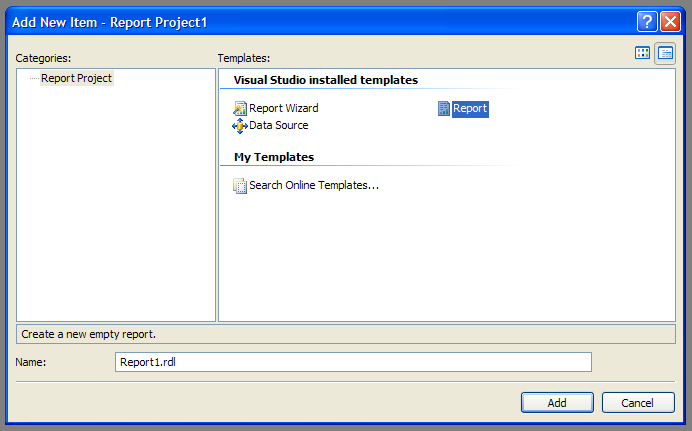
Choose “Report” item template and click “Add”.
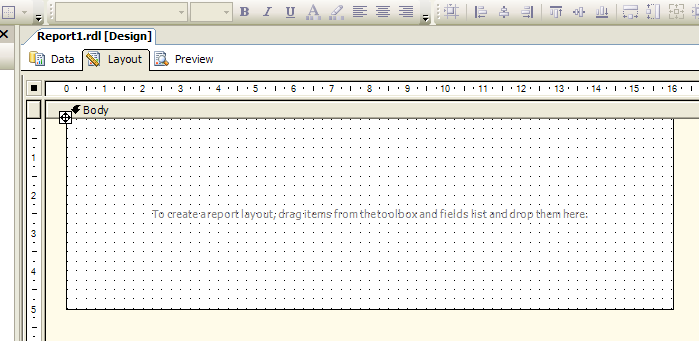
Switch the report designer to “Layout” mode.
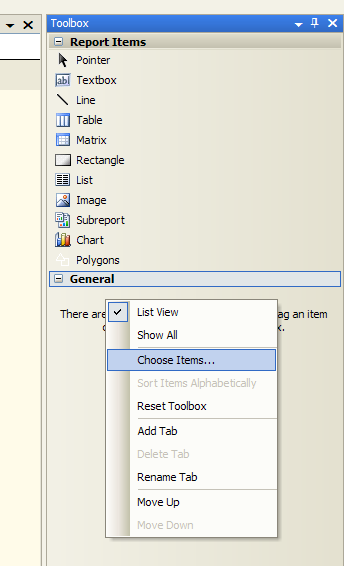
Right-click on empty space in the Visual Studio toolbox and select “Choose Items…”.
Click “Browse…” button in the opened “Choose Toolbox Items” dialog.
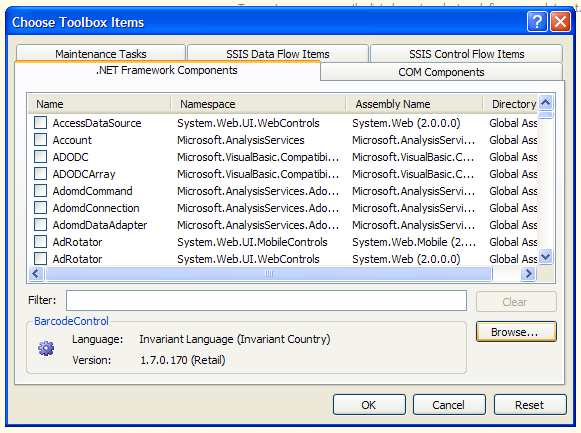
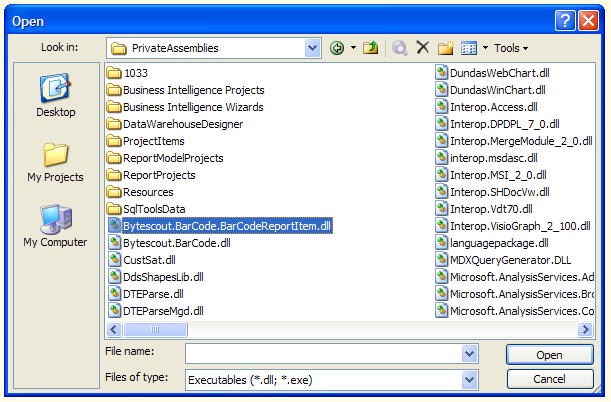
Navigate to “c:Program FilesMicrosoft Visual Studio 8Common7IDEPrivateAssemblies” folder, select “Bytescout.BarCode.BarCodeReportItem.dll” file and press “Open”.