
Adding a combobox with built-in items into PDF document
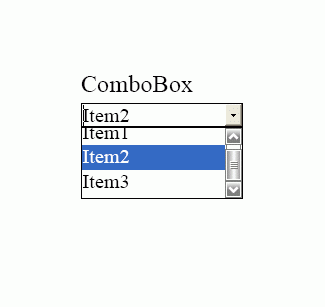
The example demonstrates how to create and decorate comboboxes using ByteScout PDF SDK.
Program.vb:
VB
'*******************************************************************
'       ByteScout PDF SDK
'
'       Copyright © 2016 Bytescout, https://bytescout.com
'       ALL RIGHTS RESERVED
'
'*******************************************************************

Imports Bytescout.PDF

''' <summary>
''' This example demonstrates how to create and decorate comboboxes.
''' </summary>
Class Program

    Shared Sub Main()

        ' Create new document
        Dim pdfDocument = New Document()
        pdfDocument.RegistrationName = "demo"
		pdfDocument.RegistrationKey = "demo"
        ' Add page
        Dim page = New Page(PaperFormat.A4)
        pdfDocument.Pages.Add(page)

        ' Add dropdown box (not editable combobox)
        Dim comboBox1 = New ComboBox(20, 20, 150, 25, "comboBox1")
        comboBox1.Font.Size = 12
        comboBox1.BorderColor = New ColorRGB(0, 0, 128)
        comboBox1.BackgroundColor = New ColorRGB(220, 220, 255)
        comboBox1.BorderWidth = 2
        comboBox1.Text = "Select item"
        comboBox1.Items.Add("Item 1")
        comboBox1.Items.Add("Item 2")
        comboBox1.Items.Add("Item 3")
        page.Annotations.Add(comboBox1)

        ' Add editable combobox
        Dim comboBox2 = New ComboBox(20, 50, 150, 25, "comboBox2")
        comboBox2.Editable = True
        comboBox2.Font.Size = 12
        comboBox2.BorderColor = New ColorRGB(0, 128, 0)
        comboBox2.BackgroundColor = New ColorRGB(220, 255, 220)
        comboBox1.BorderWidth = 2
        comboBox2.Text = "Editable ComboBox"
        comboBox2.Items.Add("Item 1")
        comboBox2.Items.Add("Item 2")
        comboBox2.Items.Add("Item 3")
        page.Annotations.Add(comboBox2)

        ' Save document to file
        pdfDocument.Save("result.pdf")

        ' Cleanup
		pdfDocument.Dispose()

        ' Open document in default PDF viewer app
        Process.Start("result.pdf")

    End Sub

End Class
Program.cs:
C#
//*******************************************************************
//       ByteScout PDF SDK
//
//       Copyright © 2016 ByteScout - https://bytescout.com
//       ALL RIGHTS RESERVED
//
//*******************************************************************

using System.Diagnostics;
using Bytescout.PDF;

namespace ComboBoxes
{
	/// <summary>
	/// This example demonstrates how to create and decorate comboboxes.
	/// </summary>
	class Program
	{
		static void Main()
		{
			// Create new document
			Document pdfDocument = new Document();
			pdfDocument.RegistrationName = "demo";
			pdfDocument.RegistrationKey = "demo";
			// Add page
			Page page = new Page(PaperFormat.A4);
			pdfDocument.Pages.Add(page);

			// Add dropdown box (not editable combobox)
			ComboBox comboBox1 = new ComboBox(20, 20, 150, 25, "comboBox1");
			comboBox1.Font.Size = 12;
			comboBox1.BorderColor = new ColorRGB(0, 0, 128);
			comboBox1.BackgroundColor = new ColorRGB(220, 220, 255);
			comboBox1.BorderWidth = 2;
			comboBox1.Text = "Select item";
			comboBox1.Items.Add("Item 1");
			comboBox1.Items.Add("Item 2");
			comboBox1.Items.Add("Item 3");
			page.Annotations.Add(comboBox1);

			// Add editable combobox
			ComboBox comboBox2 = new ComboBox(20, 50, 150, 25, "comboBox2");
			comboBox2.Editable = true;
			comboBox2.Font.Size = 12;
			comboBox2.BorderColor = new ColorRGB(0, 128, 0);
			comboBox2.BackgroundColor = new ColorRGB(220, 255, 220);
			comboBox1.BorderWidth = 2;
			comboBox2.Text = "Editable ComboBox";
			comboBox2.Items.Add("Item 1");
			comboBox2.Items.Add("Item 2");
			comboBox2.Items.Add("Item 3");
			page.Annotations.Add(comboBox2);

			// Save document to file
			pdfDocument.Save("result.pdf");

			// Cleanup
			pdfDocument.Dispose();

			// Open document in default PDF viewer app
			Process.Start("result.pdf");
		}
	}
}